

A few years back a SaaS client of mine landed three new demo requests from a single long-form post. Good news. The bad news was that the same content sitting unrepurposed on LinkedIn and YouTube Shorts could have done the same thing — and didn’t, because we weren’t moving fast enough to get it there.
hat one stung more than it should have, but it was the push I needed.
I run growth programs where a single article or podcast episode needs to show up across search, social, video, and email before the moment passes. The teams I was watching do this well weren’t working harder than everyone else. They had a system — standardized templates, automated distribution, and enough structure that the only thing requiring human judgment was the stuff that actually needed it. Hook selection, voice, the offer. Everything else ran on autopilot.
Getting there took longer than I expected. Some tools looked exactly right on the landing page and then fell apart the moment I threw a real file at them with actual brand rules and a publishing deadline. Others were fast but produced output that needed so much cleanup it defeated the purpose.
What I’ve settled on — and what this guide is built around — is the setup that’s held up in real client work at Relevance. No sponsored picks, no tools I’ve only seen demoed. Just what actually kept pace without burning out the team.
Quick comparison table is below. Full breakdown follows after.
Content repurposing tools we use in 2026
Scroll for my detailed take on each tool, which one I personally chose, and the best free options if you’re just getting started.
What is a content repurposing tool?
A content repurposing tool is software that turns one piece of content into many formats. It helps convert long posts, videos, or podcasts into clips, graphics, threads, and emails.
In marketing, we say “create once, distribute forever.” Repurposing matters because attention is fragmented. These tools give you leverage and reach without hiring a full studio.
Think of it this way: ranking a single blog might net you 1,000 monthly visits. Repurposing that post into ten Shorts, five LinkedIn posts, and a newsletter can double or triple total touches.
The core purpose is simple: creators, marketers, and teams use these tools to slice long-form inputs from blogs, videos, or audio into platform-native assets that drive discovery and leads.
People often pair repurposing tools with scheduling apps, SEO suites, and analytics platforms to track what actually moves pipeline and subscribers.
Not every option is equal, though, so picking the right fit will save you time and headaches later.
How to choose the best content repurposing tool
There are a lot of choices, and it can feel like every week a new app pops up. It’s normal to feel overwhelmed sorting features, limits, and file support.
I wrote this guide to help you match a tool to your workflow, not the other way around. The right pick depends on your inputs, target platforms, and team skills.
Most guides on this topic are written by the companies themselves or by media sites selling placement. I’m not sponsored by any platform on this list. This is my straight take after real client use.
Here are some questions you should ask when looking for a tool:
- How generous is the free tier, and what’s watermarked or limited?
- Can I do core tasks fast: trim, caption, resize, export, publish?
- Will it scale with growing content volume and multiple brands?
- How does pricing climb as I add minutes, seats, or workspaces?
- Does it cover my must-haves: templates, brand kits, subtitle controls?
- Are analytics good enough to see hook, drop-off, and CTR?
- If I leave, how hard is migration or exporting originals and assets?
- How reliable are renders, and does it catch transcript errors?
- Does it support the platforms and codecs my team actually uses?
It’s a lot, I know. The ranked list below calls out these tradeoffs so you can decide fast.
Okay, enough of me rambling, let’s get into the list.
8 best content repurposing tools in 2026
Here are my top picks for the best content repurposing tools:
- ArticleX
- Descript
- Opus Clip (Opus.pro)
- Canva
- VEED
- Kapwing
- Castmagic
- Lumen5
Let’s see which one is right for you.
1. ArticleX
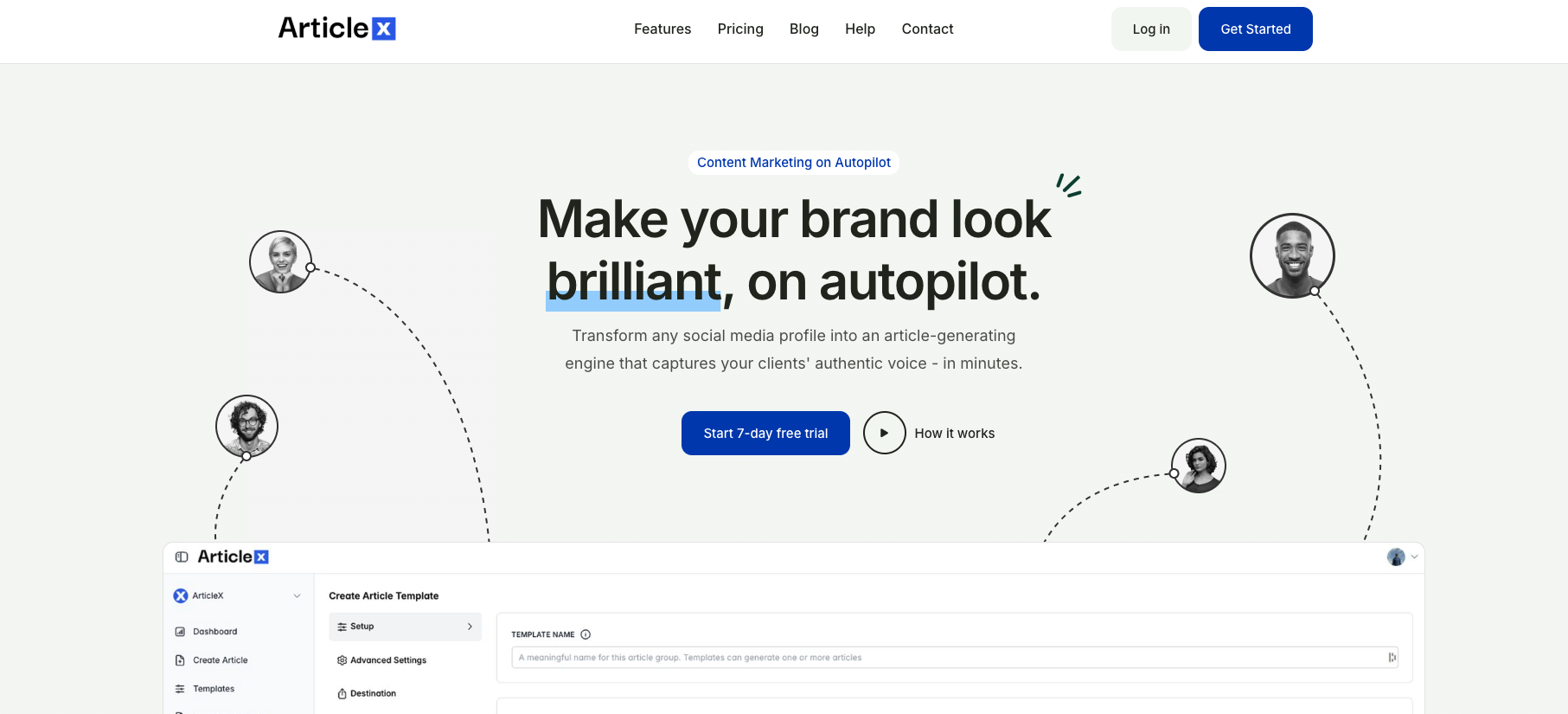
Articlex is a content repurposing platform built specifically for turning long-form written content into shorter, channel-ready formats. The idea is simple: one article goes in, and it comes out the other side as LinkedIn posts, Twitter threads, email snippets, or whatever else your distribution strategy calls for.
Setup is straightforward. Connect your content sources, set your output formats, and let the automation handle the reformatting.
Recent updates have improved how it handles tone matching across formats — which sounds like a small thing until you’ve read a LinkedIn post that obviously came from a blog and made nobody want to engage with it.I started using Articlex for client work when I got tired of watching good content die after one publish. Most teams write something solid, post it once, and move on. ArticleX is the fix for that.
It’s become a reliable part of how we keep client channels active without doubling the workload.
How ArticleX works and key features
The core workflow is source-to-output. You feed it an article, select your destination formats, and set the rules for how each one should read. It’s not just cutting and pasting — the tool reformats with structure in mind, so a Twitter thread actually reads like a thread and a newsletter snippet doesn’t feel like it was truncated mid-thought.
Templates let you lock in voice, format preferences, and platform-specific rules so output stays consistent across a team. Advanced users can set up automated pipelines that pull from an RSS feed or CMS and push to a publishing queue without anyone touching it manually. There’s also built-in scheduling and basic analytics to track what’s going out and when.
The interface stays out of your way. I’ve handed it to writers who had never touched a repurposing tool before and they figured it out without a tutorial.
Who ArticleX is for
Best fit for content teams, SEO agencies, and B2B brands that publish regularly and want more mileage out of every piece. If you’re producing one or two articles a week and currently doing all the reformatting by hand — or just not doing it at all — this is the tool that fixes that.
It’s a distribution engine for content you’ve already created.
Repurpose.io pricing
Articlex uses tiered monthly plans based on output volume and team size. Pricing roughly breaks down as:
- Starter: Entry-level for solo users or small teams, core formats and basic automation
- Growth: More output formats, templates, and scheduling features
- Agency: Multi-brand workspaces, team roles, and priority support
Check the current pricing page directly — tiers and rates get updated. Annual billing typically brings the monthly cost down if you know you’re going to commit.
The value case is pretty simple: if repurposing content manually is eating a few hours a week, this pays for itself fast.
Pros and cons of ArticleX
Pros
- Purpose-built for written content repurposing
- Template system keeps output consistent across formats
- Automation pipelines reduce manual distribution work significantly
- Clean interface that doesn’t require a learning curve
Cons
- Not a writing or editing tool — you still need good source content going in
- Best results require some upfront template configuration
- Analytics are functional but not deep
If you want distribution on autopilot, this is my first pick. If you only need occasional clips, a pure editor might be enough.
Repurpose.io reviews
G2 and Capterra list consistently positive reviews for ArticleX. Public ratings and counts change over time, so check those sites for current numbers and details.
2. Descript
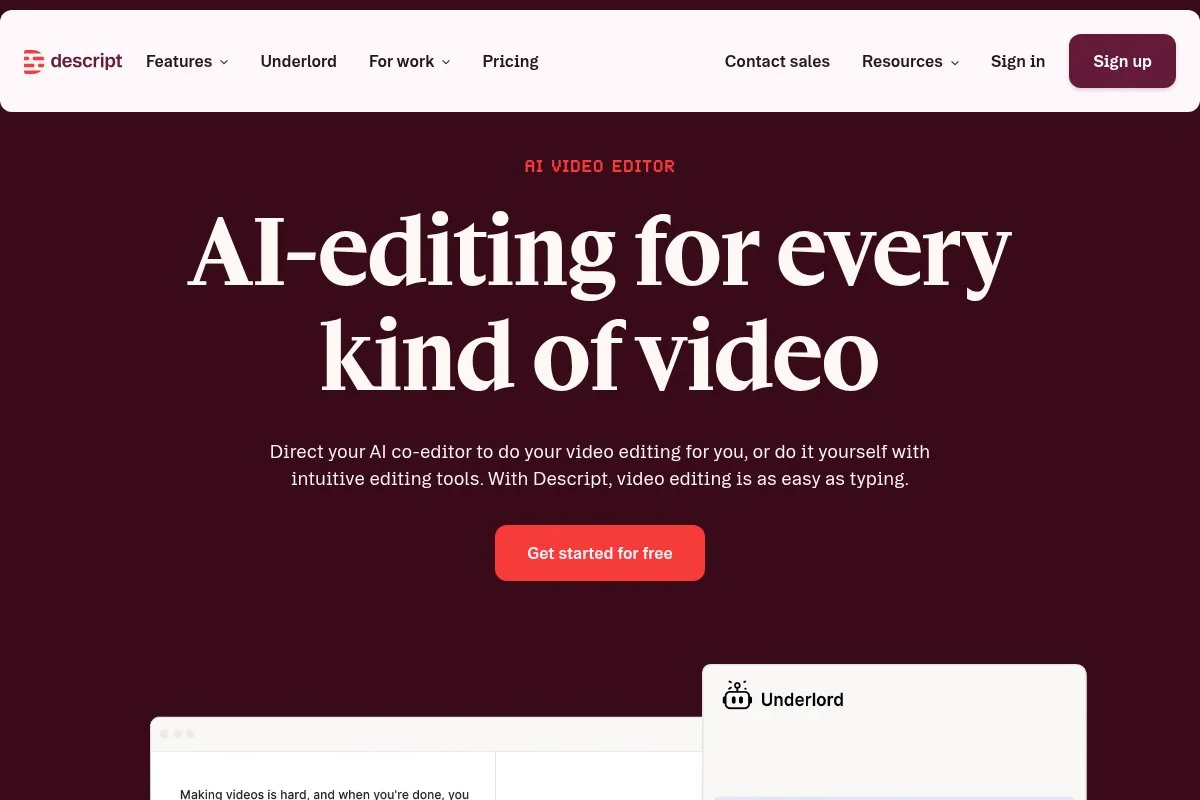
Descript is an all-in-one audio and video editor built around transcripts. The team is well known in creator circles for making editing feel like editing a doc.
There’s a free plan and paid plans starting at a reasonable monthly price. I import video, get transcripts in minutes, and edit by deleting words. Studio Sound and filler word removal are daily drivers.
Recent improvements tightened multicam, green screen, and AI-driven clip creation. It now feels strong for both podcasts and talking-head video destined for Shorts.
Higher tiers add more transcription hours, Overdub voice models, filler control, and branded export options. It’s rare to get this many features without opening a full NLE.
I use Descript across clients to cut long recordings into concise narratives. The transcript-first flow speeds up feedback with non-editors.
The app design is clean and learning curves are kind. Their tutorials are practical, and updates land often.
How Descript works and key features
Descript’s editor is WYSIWYG-meets-timeline. You edit the transcript text, which edits the media. Templates help with social-friendly subtitles and aspect ratios.
Advanced users can stack effects, use multicam, and add B-roll with search. Integrations include direct publish to YouTube and drive exports.
Analytics are project-level with basic insights on word gaps and clip timing. Automations include filler removal, silence detection, and text-based clip creation.
Beyond editing, Descript supports screen recording and simple audiograms. Support resources are strong, with helpful docs and videos.
It strikes a balance: approachable for beginners, powerful enough for most marketing edits.
Who Descript is for
Great for podcasters, YouTubers, content marketers, B2B teams, and educators. It shines for turning long recordings into tight clips with clean captions. If you do heavy motion graphics, use an NLE. Most users won’t need technical skills to get value.
Descript pricing
Descript has a free plan with limited transcription and export. Paid plans scale by features and transcription hours.
- Free: $0/month, limited transcription, basic edits, watermarks on some exports
- Creator: $15/month, more transcription hours, filler tools, export controls
- Pro: $30/month, higher limits, Overdub, multicam, advanced features
- Enterprise: Custom, SSO, security, admin controls
Pricing is fair compared to pro editors when time saved is factored. Annual billing usually lowers the monthly rate. If you need lots of hours, Pro is the sweet spot.
Pros and cons of Descript
Pros
- Edit by text speeds up rough cuts and reviews
- Strong captions and social export options
- Good value for podcast and video workflows
- Tutorials make onboarding quick
Cons
- Heavy VFX or color work needs a traditional NLE
- Large projects can feel slow on older machines
- Team project management is basic compared to studios
If you repurpose long form weekly, Descript is a safe, productive choice. Power editors may keep Premiere or Final Cut nearby.
Descript reviews
Descript earns strong ratings on platforms like G2 and Capterra for ease of use and transcript-first editing. Check those sites for the latest numbers and feedback.
3. Opus Clip (Opus.pro)
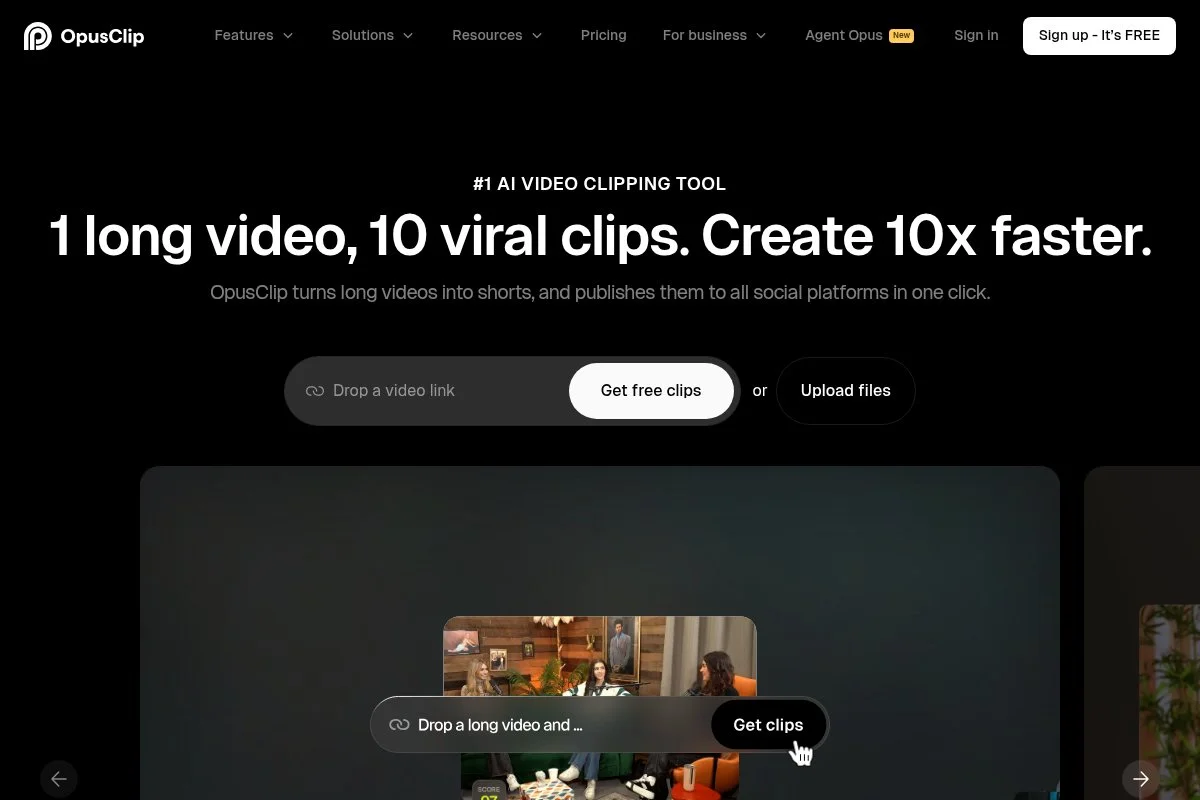
Opus Clip by Opus.pro is focused on turning long videos into short, punchy clips. It analyzes speech, selects hooks, and formats clips for Shorts, Reels, and TikTok.
You can try it free, with paid tiers starting at an accessible monthly price. Upload your video or paste a link, and it quickly proposes multiple clips with captions and layouts.
Recent updates improved hook scoring and templates. The platform also added better brand controls, which helps teams keep styles consistent across channels.
Higher plans unlock more export minutes, team collaboration, and bulk processing. Auto reframing, emoji layers, and dynamic subtitles are designed for scroll-stopping feeds.
I reach for Opus Clip when I need volume fast without sacrificing clarity. It’s not a full editor, but that’s the point—it’s fast clipping that nails the basics.
Support is active, and onboarding is quick. The web app feels light, which makes it easy to delegate.
How Opus Clip works and key features
The interface is minimal: upload, auto-clip, review. You can tweak captions, styles, and cropping with a simple editor. Templates let you set brand fonts and placements.
Technical users can adjust timing, aspect ratios, and export settings. Analytics focus on clip scoring and suggestions rather than deep performance metrics.
Automations include hook detection, scene switches, and auto-subtitles. The tool also offers multiple layouts per clip so you can A/B test looks.
It’s designed for short-form output. Support is via help center and email, with quick responses in my experience.
Overall: beginner-friendly speed with enough control to meet brand needs.
Who Opus Clip is for
Great for YouTubers, founders, agencies, social editors, and webinar hosts. It shines at producing many short clips from a single talk. If you want advanced compositing, use a full editor. No deep technical skill needed.
Opus Clip pricing
Opus Clip offers a free option with limits, and paid plans scale by minutes and features.
- Free: $0/month, limited exports, watermark on some outputs
- Starter: $19/month, more export minutes, basic brand controls
- Pro: $49/month, higher limits, team features, advanced templates
- Team: $99+/month, collaboration, shared styles, admin controls
The pricing is fair for short-form pipelines. Annual billing usually reduces the rate. If you’re producing daily shorts, Pro pays for itself in time saved.
Pros and cons of Opus Clip
Pros
- Fast auto-clipping with solid hook detection
- Easy caption styling and aspect ratio changes
- Affordable entry with useful free tier
- Bulk clip creation from one long video
Cons
- Not suited for complex edits or heavy effects
- Analytics are light
- Brand controls improve with higher tiers
If shorts drive your discovery, this is a strong pick. If you need long-form storytelling, pair it with Descript or an NLE.
Opus Clip reviews
Opus Clip has active user buzz across creator communities and Product Hunt. Ratings and review counts shift, so check Product Hunt or G2 for current sentiment.
4. Canva
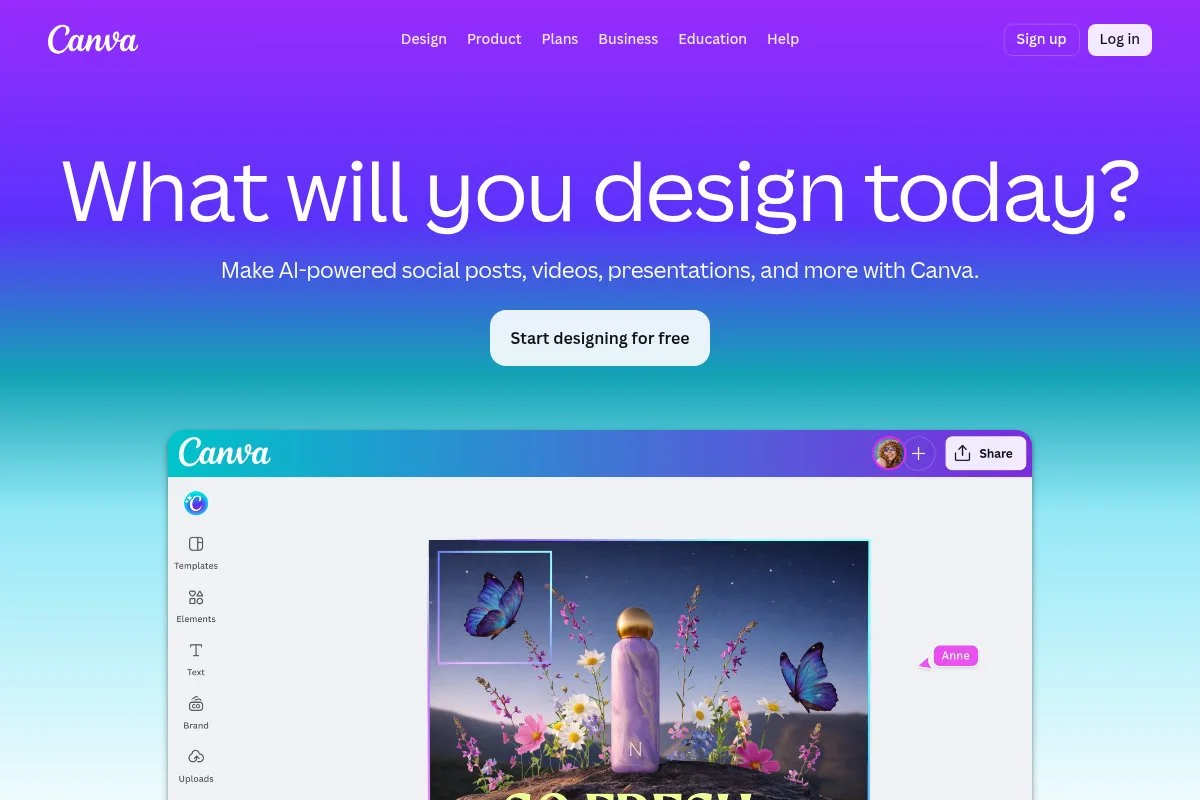
Canva is a design platform built for speed and collaboration. It’s my go-to for batch graphics, carousels, and resizing assets for every channel.
There’s a free plan, and Pro starts at a monthly fee that’s easy to justify. Magic Resize, Brand Kits, and Bulk Create handle most of the heavy lifting.
Recent releases improved video timelines, caption styles, and AI tools for background removal and layout suggestions. Teams got better brand controls and approvals.
Pro and Teams unlock brand folders, shared templates, and advanced export formats. You can also schedule posts or hand off to a social scheduler.
I use Canva to turn key quotes into carousels and shorts cover images in minutes. It keeps non-designers moving without bottlenecks.
Templates are plentiful, and the UI feels welcoming. Support and community resources are deep.
How Canva works and key features
The editor is drag-and-drop with WYSIWYG controls. Thousands of templates cover posts, stories, thumbnails, and presentations.
Customization is straightforward: brand colors, fonts, and logos lock in with Brand Kits. Technical users can fine-tune exports and animations.
Analytics are basic, focused on collaboration and brand usage. Automations include Magic Resize and bulk asset generation from spreadsheets.
Extra tools include websites, presentations, whiteboards, and a growing video editor. Support is extensive with help docs and education content.
Overall, it’s very beginner-friendly and fast for teams moving at pace.
Who Canva is for
Great for marketers, founders, social managers, educators, and agencies. It excels at high-volume graphics, carousels, and simple video edits. If you need advanced motion design, use After Effects. No technical skill required.
Canva pricing
Canva offers a free plan with core features. Paid plans scale by features and seats.
- Free: $0/month, basic templates, limited brand controls
- Pro: $14.99/month, Brand Kit, Magic Resize, premium assets
- Teams: $29.99+/month, multiple seats, approvals, brand controls
- Enterprise: Custom, SSO, advanced governance
Pro is a standout value for batch production. Annual billing lowers cost. If you manage multiple brands, Teams adds the right guardrails.
Pros and cons of Canva
Pros
- Bulk creation and resize features are fast
- Brand Kits keep assets consistent across teams
- Affordable Pro plan with premium templates
- Massive template library
Cons
- Video features are basic for advanced editors
- Overused templates need customization to feel original
- Asset management can get messy without structure
If you need output volume and brand control, Canva is a staple. Motion-heavy teams should pair it with a pro editor.
Canva reviews
Canva holds high ratings across G2 and Capterra for ease of use and template depth. Check those sites for current star ratings and review counts.
5. VEED
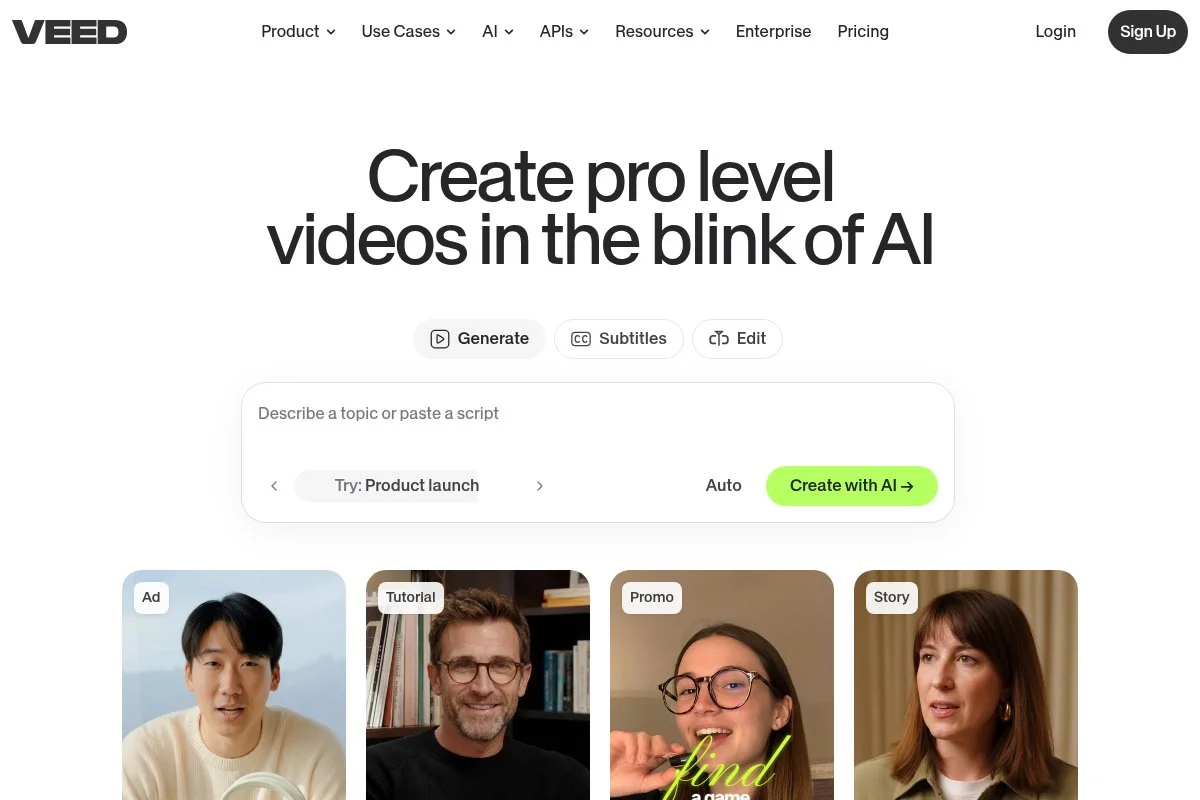
VEED is a browser-based video editor built for social teams. It’s quick for captions, trimming, subtitles, and layout changes without heavy software.
Free plan available, with paid tiers starting affordably. Upload a clip, auto-generate subtitles, and export in vertical, square, or landscape in minutes.
Recent updates improved subtitle accuracy and brand presets. Collaboration features got stronger for teams passing projects back and forth.
Higher plans add more export quality, longer limits, and brand kits. VEED’s templates for social titles and progress bars help videos stand out.
I use VEED when I need clean captions fast. It’s also handy for resizing webinars into snackable posts.
Support is helpful, and the app stays responsive even on modest laptops.
How VEED works and key features
VEED’s editor is clean and browser-native. Drag, trim, caption, and export. Templates and brand kits keep styles consistent.
Advanced users can tweak codecs and export bitrates. Integrations focus on quick sharing to social and drives.
Analytics are light, but enough for export tracking. Automations include auto-subtitles and translation.
VEED also offers screen recording and simple audiograms. Support includes help docs and chat.
The experience is beginner-friendly and ideal for quick-turn social edits.
Who VEED is for
Perfect for social managers, creators, founders, and B2B teams posting weekly. It excels at captions, resizing, and quick edits. For intricate timelines, use Descript or an NLE. No technical background required.
VEED pricing
VEED uses tiered pricing by features, export quality, and limits. Free plan available.
- Free: $0/month, basic exports, watermark on some outputs
- Basic: $18/month, higher export quality, longer limits
- Pro: $30/month, brand kit, subtitles, advanced exports
- Business: $59+/month, teams, collaboration, priority support
It’s priced mid-market and fair for the speed gains. Annual plans reduce cost. If you caption daily, Pro is a smart move.
Pros and cons of VEED
Pros
- Fast captions and subtitle controls
- Clean browser editor; no heavy installs
- Brand kits and templates save time
- Good value at Pro for social teams
Cons
- Limited for complex multi-track edits
- Analytics are basic
- Free tier watermarks some exports
VEED is a strong pick for day-to-day social video output. Studios needing deep control should look at pro editors.
VEED reviews
VEED scores well on G2 and Trustpilot for speed and simplicity. Check those platforms for current ratings and volumes.
6. Kapwing
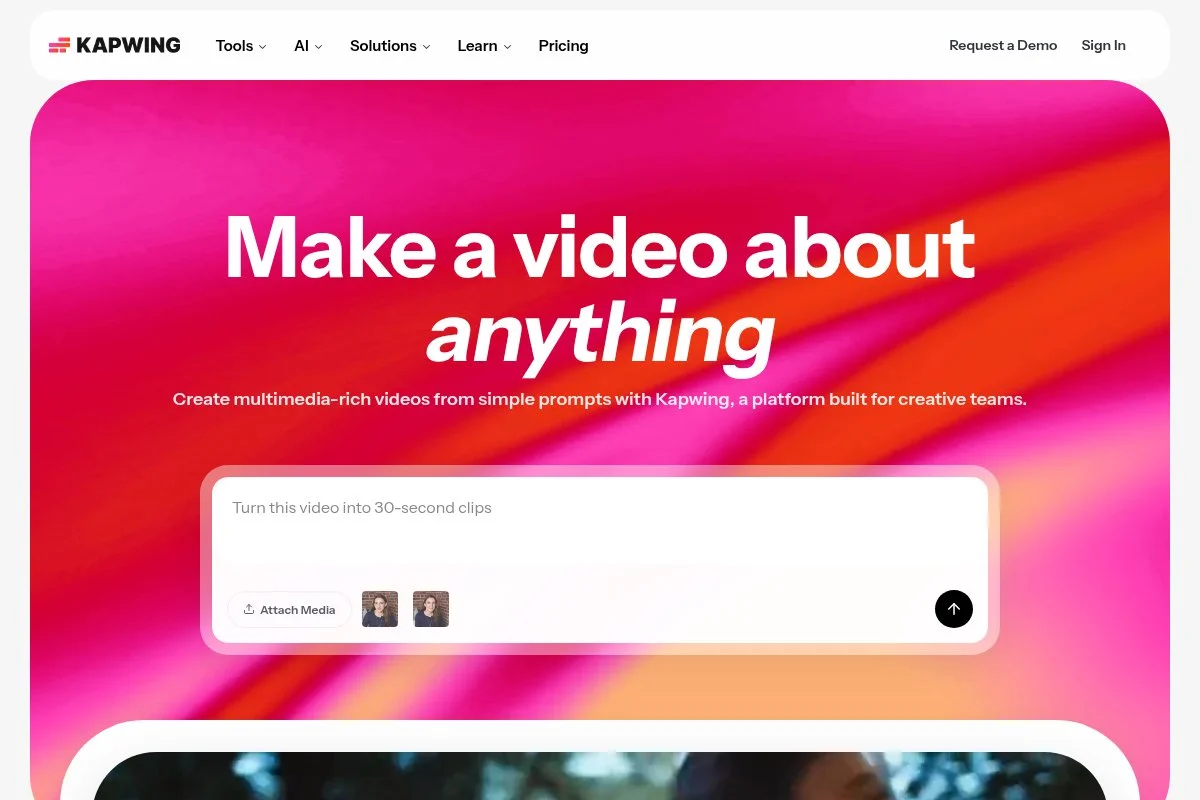
Kapwing is a browser editor geared for quick social video, memes, and image edits. It’s simple, fast, and good at one-off tasks that need minutes, not hours.
There’s a free plan and paid plans starting at a mid-range price. Upload, trim, caption, resize, and export inside the browser with no fuss.
Recent additions improved subtitles, templates, and AI assist features. Team workspaces made shared assets easier to manage.
Higher tiers unlock better export quality, longer uploads, and brand assets. It also supports quick GIFs and meme formats.
I rely on Kapwing for fast edits that don’t justify opening heavier tools. It’s reliable for social-first content.
Docs are clear, and the app feels snappy on most networks.
How Kapwing works and key features
Kapwing’s editor is straightforward: timeline, layers, and captions. Templates help with common post sizes and meme layouts.
Advanced users get fine-tuned exports and aspect ratios. Integrations cover storage and quick publishes.
Analytics are minimal. Automations include auto-caption and some AI clip helpers. It also handles basic image editing and GIF tools.
Support includes help center articles and email support. For day-to-day tasks, the UX is friendly for non-editors.
Overall, great for fast, browser-based repurposing without a big learning curve.
Who Kapwing is for
Good for social managers, solo creators, community teams, and startups. It shines for quick posts, captions, and meme variants. It’s not built for complex storytelling. No special skills required.
Kapwing pricing
Kapwing has a free plan and paid options that scale by limits and export quality.
- Free: $0/month, basic tools, watermarks on some outputs
- Pro: $24/month, higher limits, premium exports, brand assets
- Business: $64+/month, collaboration, more storage, support
Pricing lands mid-market. Annual billing reduces cost. If you work in the browser daily, Pro is cost-effective.
Pros and cons of Kapwing
Pros
- Very fast for simple edits
- Good captioning and meme tools
- Affordable Pro plan
- No installs needed
Cons
- Light analytics
- Complex edits require other tools
- Free tier watermarks some exports
If your focus is quick turn social assets, Kapwing fits. Heavy editors will want something deeper alongside it.
Kapwing reviews
Kapwing’s reviews on G2 and Capterra highlight speed and ease. For up-to-date ratings and counts, check those platforms directly.
7. Castmagic
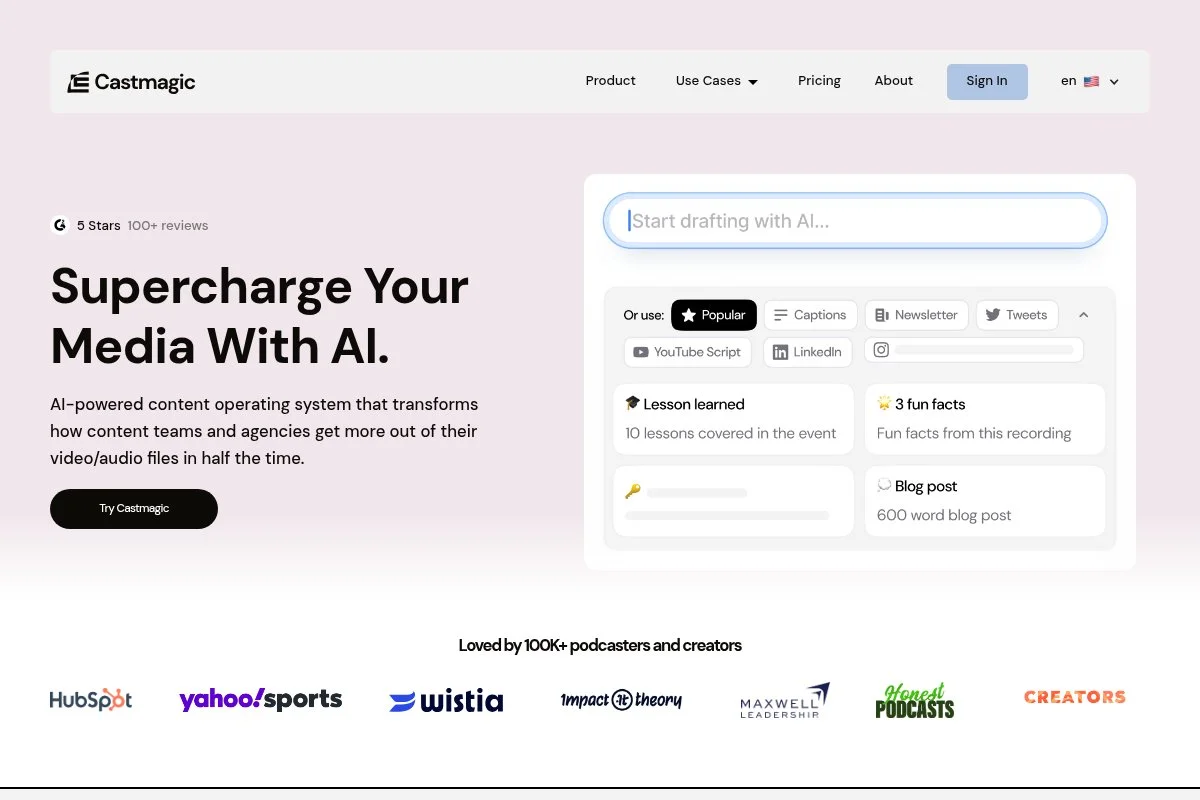
Castmagic turns audio and video into show notes, blog outlines, clips, and social posts. It’s built for podcasters and teams that ship weekly episodes.
It offers a trial, with paid plans starting at a higher entry price than basic editors. Upload an episode and get timestamps, summaries, titles, and post drafts.
Recent updates improved speaker detection and formatting of show notes. The prompts system gives more control over voice and structure.
Upper tiers add more hours, team seats, and brand libraries. The ability to output email drafts and threads helps close the loop from episode to distribution.
I use Castmagic on podcast-heavy clients when I want quality notes and clip ideas quickly. It reduces the gap from recording to publish day.
Support is helpful, and the product evolves quickly.
How Castmagic works and key features
Upload audio or video, and Castmagic transcribes and structures outputs: show notes, summaries, quotes, and social drafts. The editor lets you refine prompts and styles.
Templates can be customized for brand tone. Advanced users can export clean transcripts and timestamps to other tools.
Analytics focus on content outputs rather than performance. Automations include recurring templates and batch processing.
It also offers clip suggestions and simple trimming. Support and guides help teams fine-tune voice.
The experience is friendly for non-technical producers seeking fast publishing assets.
Who Castmagic is for
Ideal for podcasters, content marketers, agencies, and coaches. It excels at turning episodes into notes, posts, and emails. If you only need video edits, choose Descript. Little technical skill required.
Castmagic pricing
Castmagic pricing scales by hours processed and features. Trial available to test outputs.
- Starter: $39/month, limited hours, core outputs
- Growth: $99/month, more hours, team seats, brand control
- Pro/Business: $299+/month, high volumes, collaboration, priority support
It’s pricier than pure editors but delivers full content packages. Annual discounts can help. If episodes are your engine, the time saved justifies the spend.
Pros and cons of Castmagic
Pros
- Strong show notes and summary outputs
- Prompts give control over brand voice
- Clip ideas and timestamps speed editing
- Covers email and social drafts
Cons
- Higher starting price than basic tools
- Analytics are output-focused, not performance
- Best for pods; less value if you don’t publish audio
If you publish episodes weekly, Castmagic is a force multiplier. If not, you may not need its depth.
Castmagic reviews
Castmagic has positive feedback across creator forums and review sites. Check G2 or Product Hunt for the latest ratings and review counts.
8. Lumen5
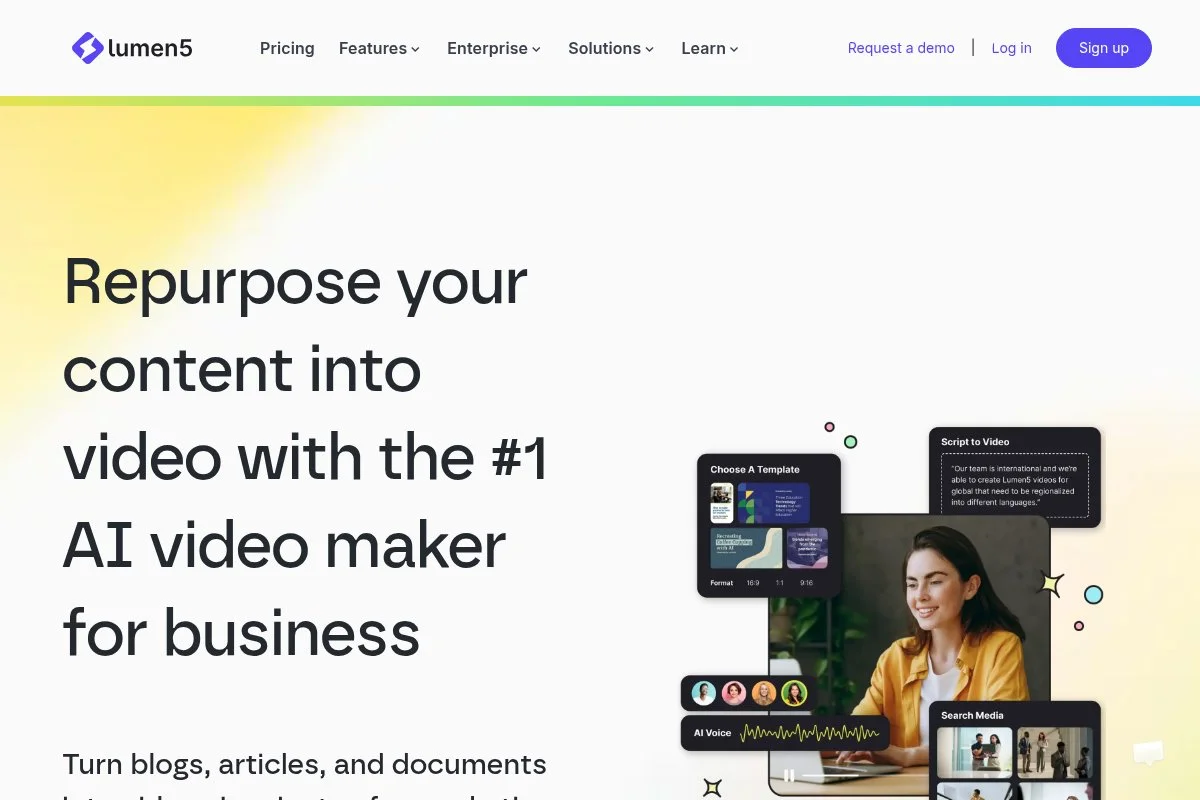
Lumen5 focuses on turning blog posts and text into videos. It’s built for explainer-style clips that fit social and ads.
There’s a free plan with paid tiers starting low. Paste a URL, and it drafts scenes with headlines, images, and music. You refine from there.
Recent improvements enhanced text-to-scene mapping and brand styles. Exports look cleaner with updated templates.
Higher plans add better stock, branding, and resolutions. It’s a fast path from blog to video without learning heavy tools.
I use Lumen5 when I want a social-ready explainer from a high-performing article. It’s not studio-grade, but it’s quick and on-brand.
Support is steady, and tutorials get you shipping same day.
How Lumen5 works and key features
The editor is template-driven. Import text or a URL, and it suggests scenes and visuals. You can swap media, tweak copy, and adjust timing easily.
Templates are plentiful with brand options. Advanced users can control fonts, colors, and transitions. Exports support common social formats.
Analytics are limited. Automations include scene suggestions and music matching. There’s also a media library with stock assets.
Support materials are clear. For everyday explainer videos from text, it gets the job done.
Overall: beginner-friendly and practical for repurposing blogs into short videos.
Who Lumen5 is for
Made for marketers, social teams, educators, and startups. Best for blog-to-video explainers and ad variants. If you need custom motion design, use a pro editor. No technical skill needed.
Lumen5 pricing
Lumen5 pricing scales by features, stock access, and export quality. Free plan available.
- Free: $0/month, basic templates, Lumen5 watermark
- Starter: $19/month, higher quality, more templates
- Professional: $59/month, brand kit, premium stock
- Enterprise: Custom, collaboration, SSO, advanced support
It’s priced fairly for blog-to-video use. Annual billing reduces cost. If you convert articles weekly, Professional is the right tier.
Pros and cons of Lumen5
Pros
- Very fast blog-to-video conversion
- Good templates and stock options
- Beginner-friendly editor
- Affordable starter plan
Cons
- Limited for complex animations
- Watermarks on free exports
- Analytics are light
If you want simple explainers from text, it’s a solid choice. Motion-heavy needs require other tools.
Lumen5 reviews
Lumen5 receives favorable reviews on G2 and Capterra for ease and speed. For current star ratings and review counts, check those listings.
What is the best content repurposing tool right now?
My top picks today are ArticleX, Descript, and Opus Clip. For full pipeline automation, Repurpose.io leads. For editing and narrative control, Descript is the anchor. For shorts volume, Opus Clip is fast and effective.
ArticleX is my number one because I use it daily. I found it while trying to keep four client channels consistent without more headcount.
On value, ArticleX scales well. Compare it to hiring an extra coordinator or spending five hours per week on manual downloading, resizing, and posting. Even at higher tiers, the saved time and steadier posting cadence beat the cost. As clip volume grows, the per-asset cost drops fast.
Descript is my close second. It does the hard work of turning long recordings into clear stories. Recent AI tools for clip creation and multicam polish make it even better. If your bottleneck is editing, not distribution, start here and you’ll feel the win on day one.
Descript’s unique strength is the transcript-first workflow. Non-editors can approve by reading, which speeds feedback. If I led a podcast-only team, I might pick Descript as the primary hub and pair it with a basic scheduler.
Opus Clip is my third choice for teams that live on Shorts, Reels, and TikTok. It turns one talk into many clips quickly, which feeds the algorithm steady. The free tier makes it easy to test before committing.
I often use a mix: Descript for trims and narration, Opus Clip for volume, and Repurpose.io for distribution. Canva steps in for carousels and thumbnails. This stack keeps quality high while shipping more.
Choosing between these is tough because they each solve a different bottleneck. I stuck with Repurpose.io as my anchor because steady distribution wins campaigns. Editing and clipping matter, but if posting slips, results fade.
I hope this helped you pick a setup that fits your goals and budget. If you try one thing this week, set up a simple workflow and let it run. See you in the feeds.
Frequently Asked Questions
Q: What should I repurpose first if I’m short on time?
Start with your best-performing long post or video. Cut three short clips, pull two quote images, and write one email summary. Ship this set every week.
Q: How do I keep brand voice consistent across tools?
Create a short style guide with tone, banned words, and examples. Save brand kits and templates. Review the first few outputs, then lock the templates.
Q: Which tools are best for absolute beginners?
Start with Canva for graphics and either Opus Clip or VEED for short video. Both have friendly editors and free plans to learn without pressure.
Q: How do I measure if repurposing is working?
Track a simple set: views by platform, saves/shares, click-through, and leads or demos. Compare weeks with repurposed posts against weeks without.
